Nuzeebun Project Consultant
User Documentation
Thank you for choosing Web Creations as your web partner. If you have any questions that are beyond the scope of this help file, please feel free to email us on query@webcreations.mu
How To login to the Admin Panel ?
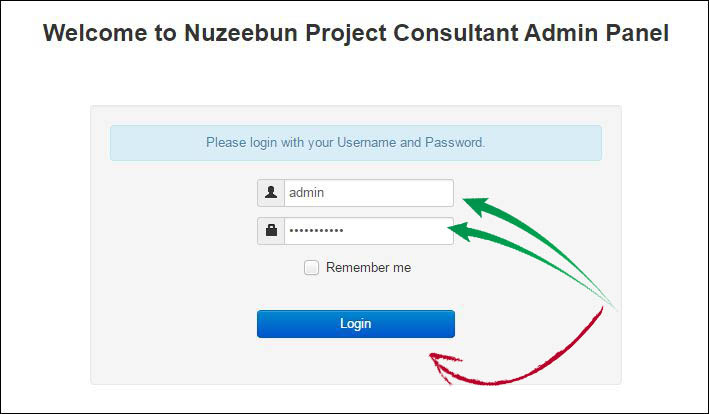
Step to follow to login:
- Go on http://www.npc-ltd.com/masterzone/
- Enter Username
- Enter Password
- Click on login
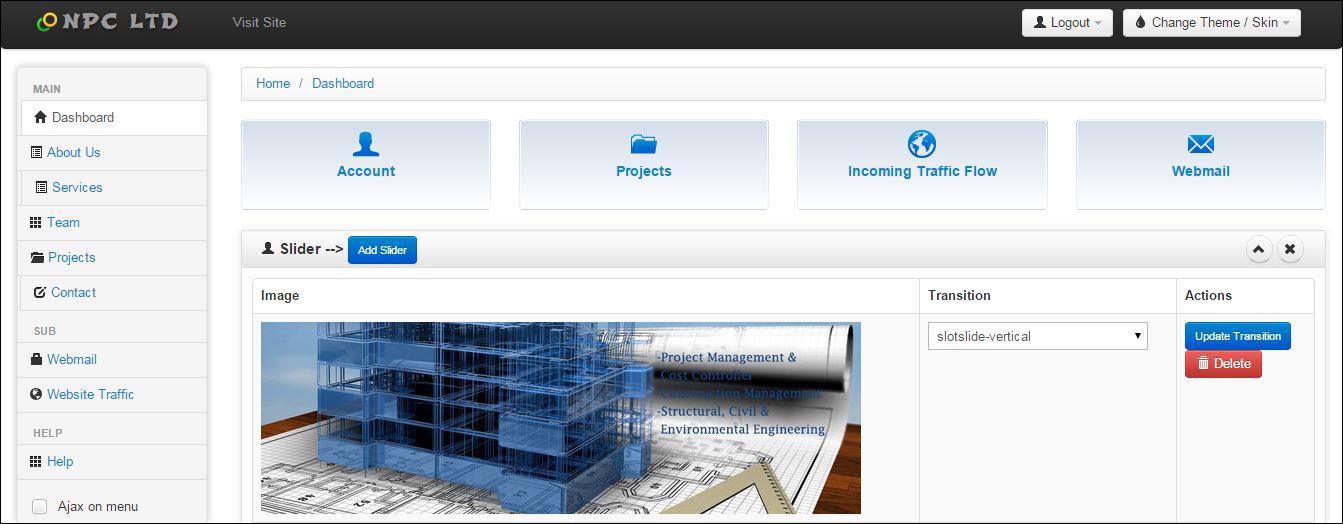
You will be directed to new page(see screenshot below):
Admin panel Dashboard after login.
How to change password ?
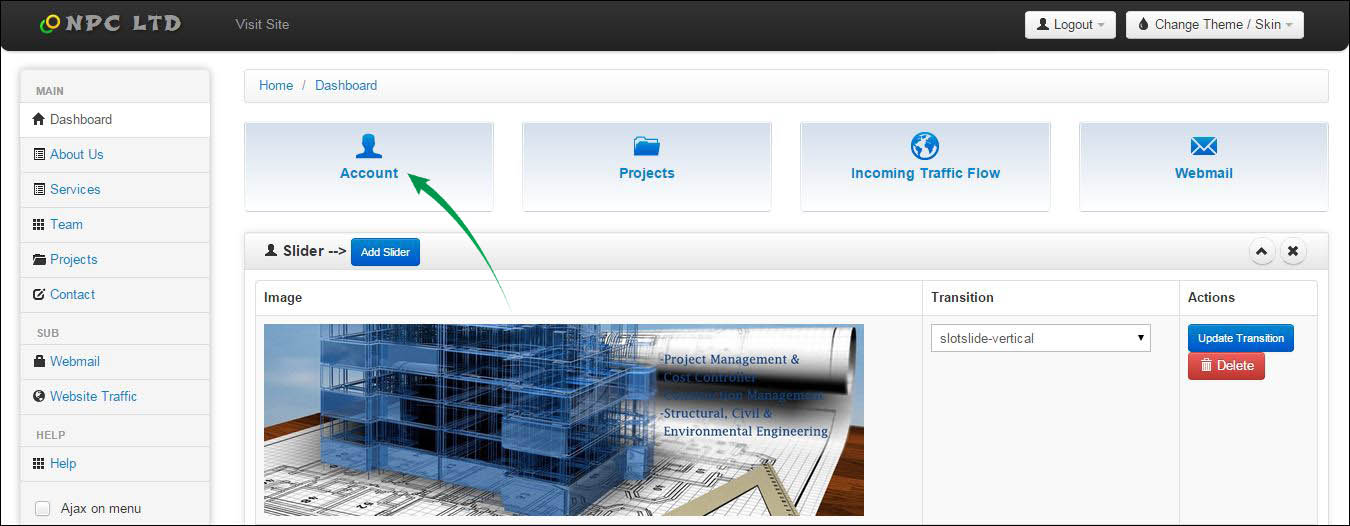
Steps to follow to change password :
- Click On Account(See Green Arrow) -> To new page(see screenshot below)
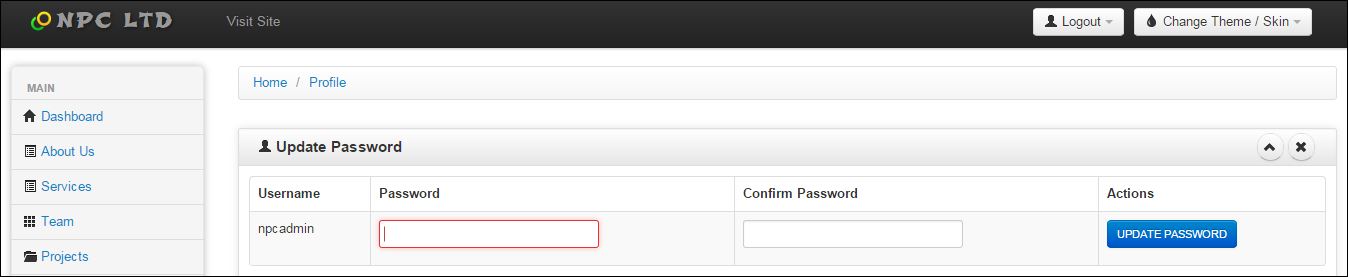
- Enter Password
- Confirm Password
- UPDATE PASSWORD
- Change Password newpage screenshot:
1. How to add slider?
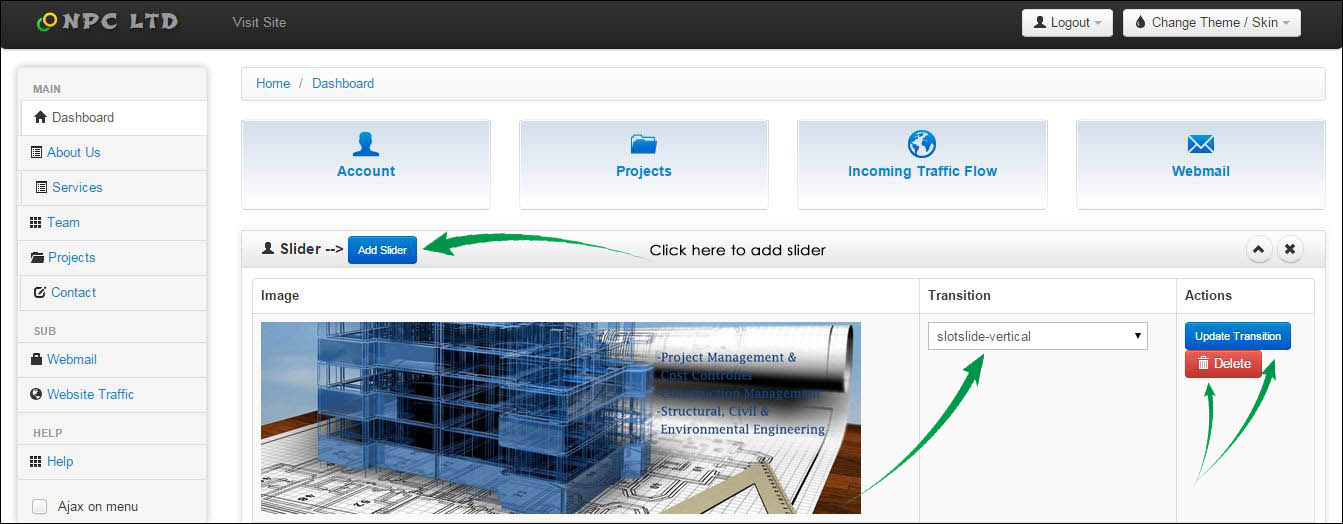
Steps to follow to add slider :
- Go on Dashboard
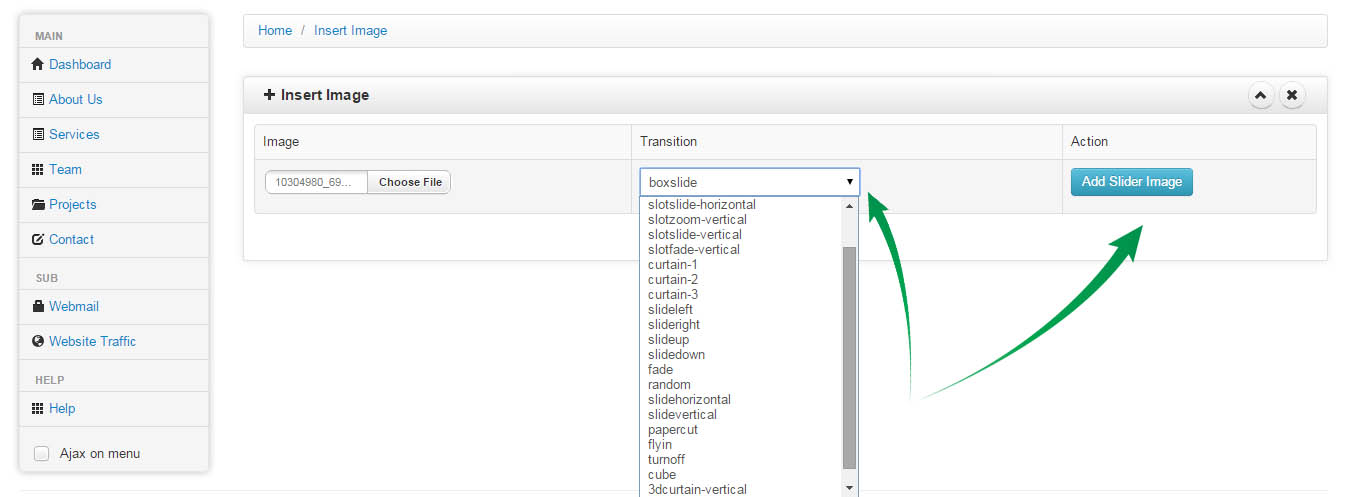
- Click on Add slider -> To new page(see screenshot below)
- Choose File(Image file)
- Select Transition effect
- Click on Add Slider Image
- Add slider newpage screenshot:
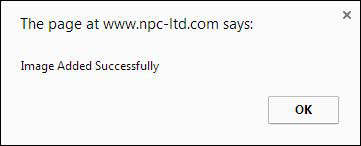
- See pop-out box successfully added(see screenshot below):
2. How to update slider?
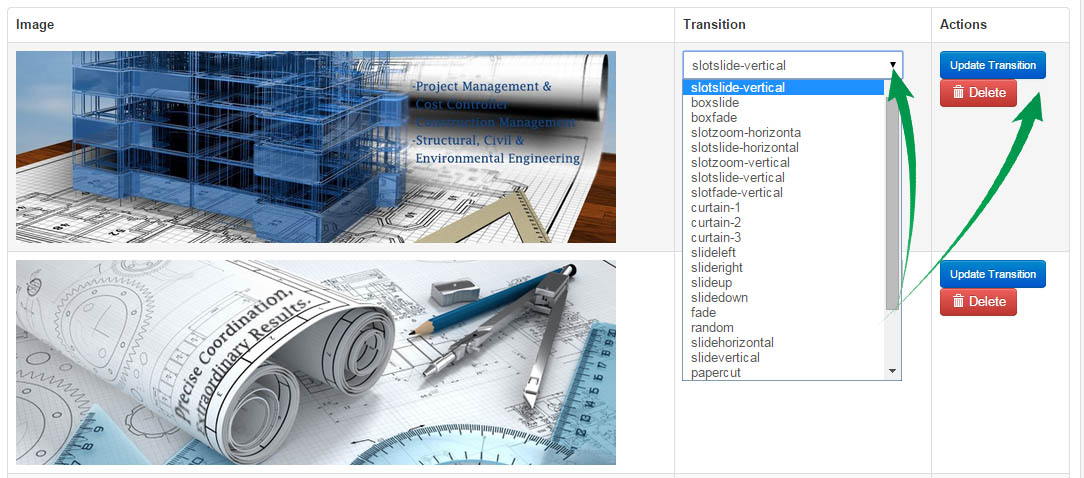
Steps to follow to update slider :
- Go on dashboard
- Change transition(see screenshot)
- Choose transition(boxslide,boxfade...)
- Select transition
- Click on update Transition
3. How to delete slider?
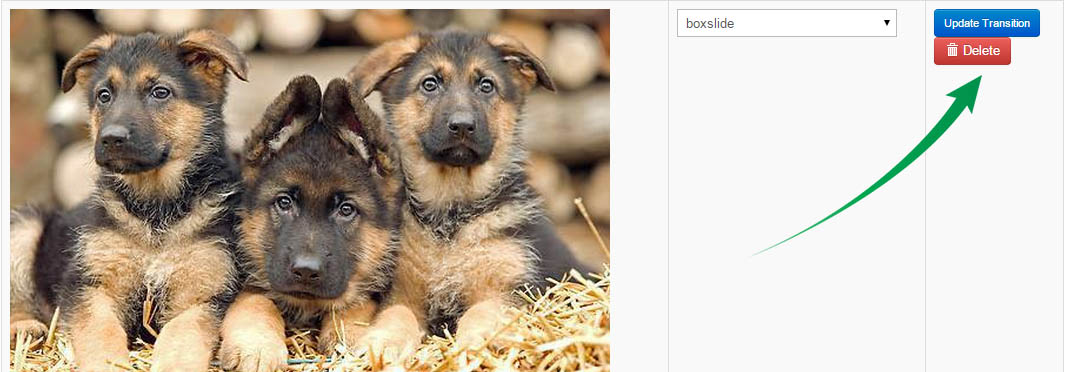
Steps to follow to delete slider :
- Go on dashboard
- Select slider(image) to delete
- Click on Delete(see above screenshot)
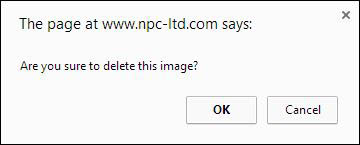
- See pop-out box to confirm deletion of image(see screenshot below)
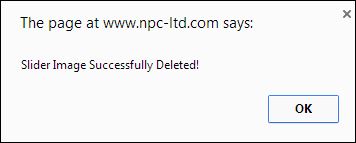
- See pop-out box slider image successfully deleted(see screenshot below)
Note: Not recomended to use image exceeding 800kb
1.How to edit About Us?
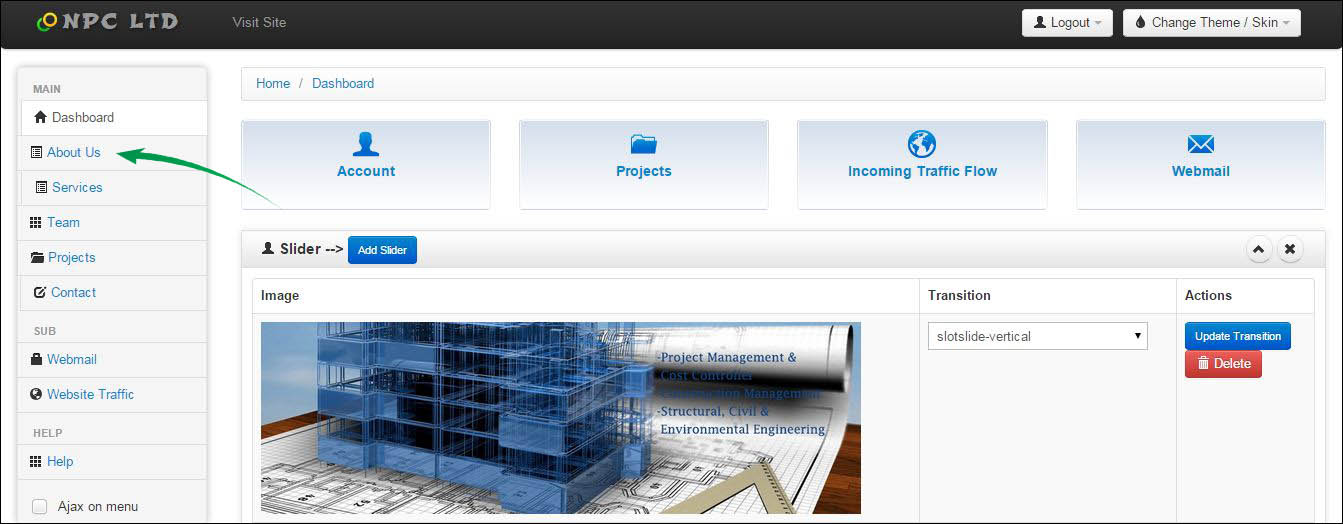
Steps to edit About us :
- Go on dashboard
- Click on About Us(see above screenshot above)
- New page -> Select content to change in About section
- Click on save when done
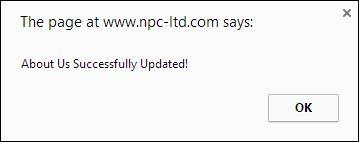
- See pop-out box successfully added(see screenshot below)
2.How to edit Vision?
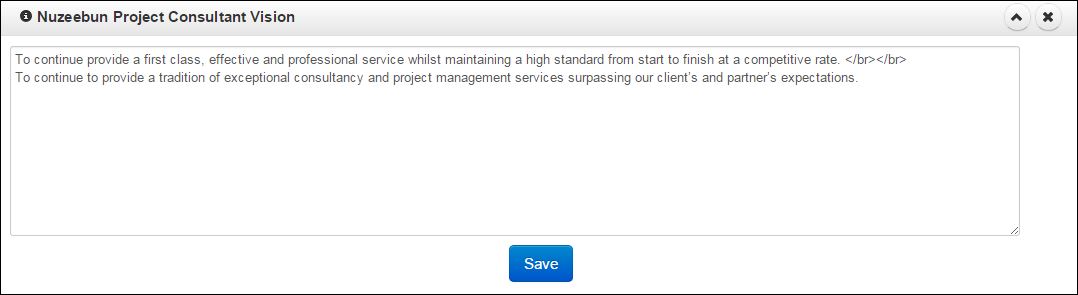
Steps to edit Vision:
- Select content to modify in "Vision"
- Click on save when done
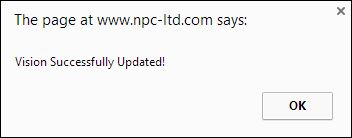
- See pop-out box successfully added(see screenshot below)
3.How to edit category?
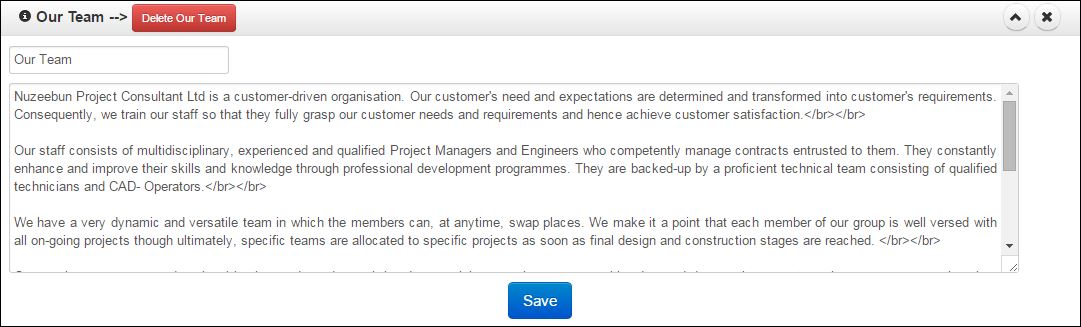
Steps to edit about category:
- Select content to modify in category selected (e.g.Our Team :see screenshot)
- Click on save when done
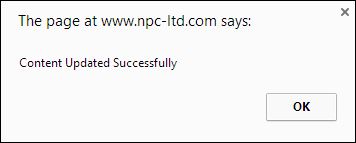
- See pop-out box successfully added(see screenshot below)
4.How to add a new about category?
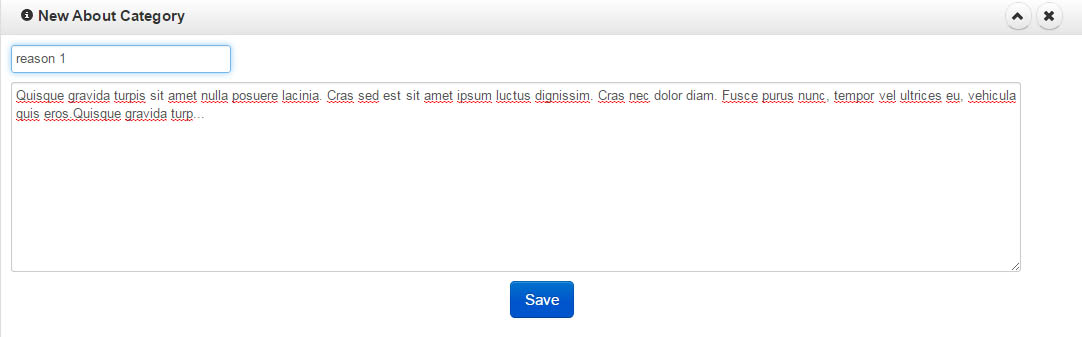
Steps to edit about category:
- Go to "New About Category"(Scroll down in about us page)
- Fill in the provided area title and text(see above screenshot)
- Click on save when done
- See pop-out box successfully added(see screenshot below)
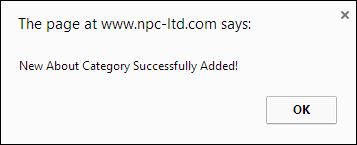
New About Category Successfully added. see screenshot below:
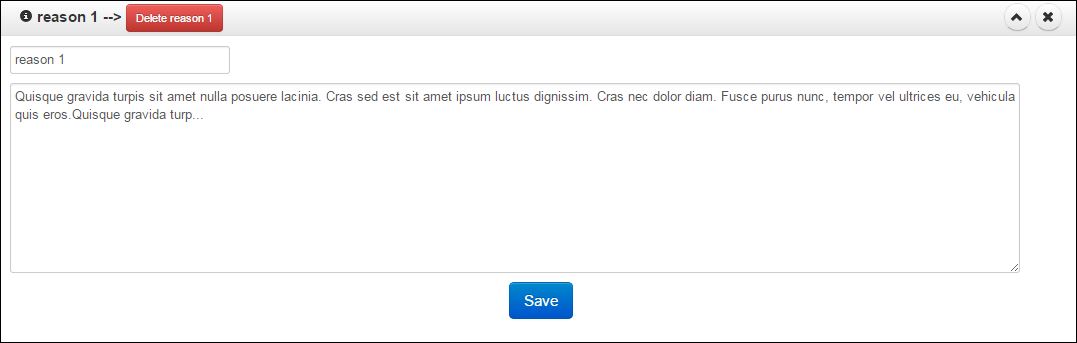
5.How to Delete a new about category?
Steps to delete about category:
- Select about category to be deleted"
- Click On delete button(see screenshot below)
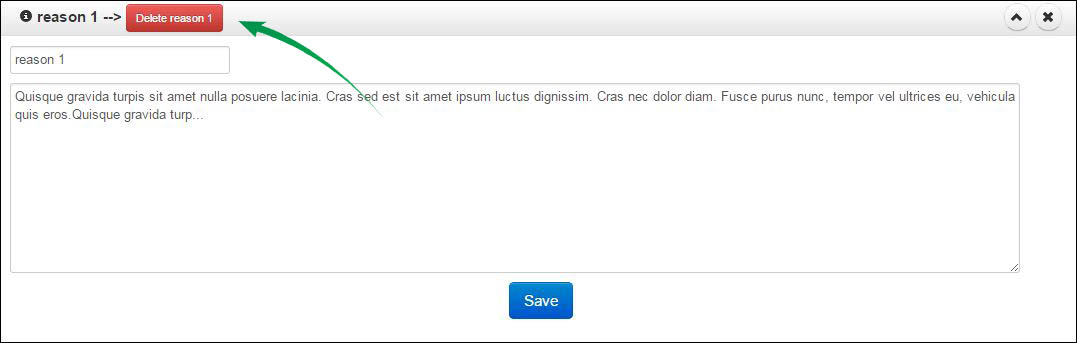
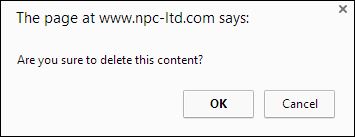
- See pop-out box to confirm deletion of about category section(see screenshot below)
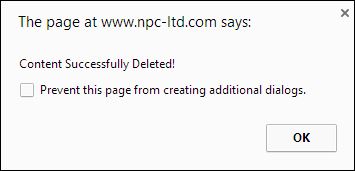
- See pop-out box of content deleted successfully(see screenshot below)
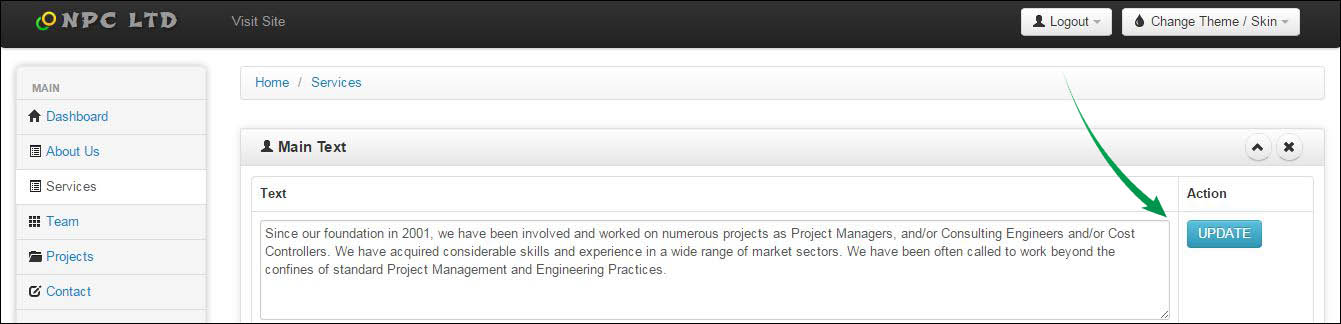
1.How to edit main text in services?
Steps to edit main text in services:
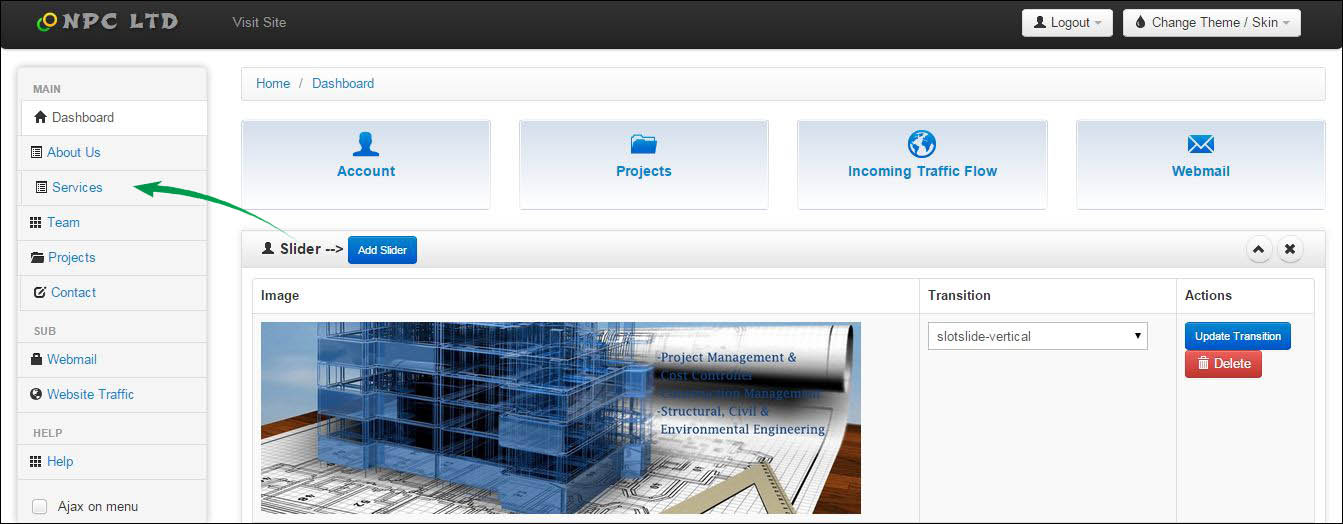
- click on services on dashboard(see above screenshot)
- New page - See main text area
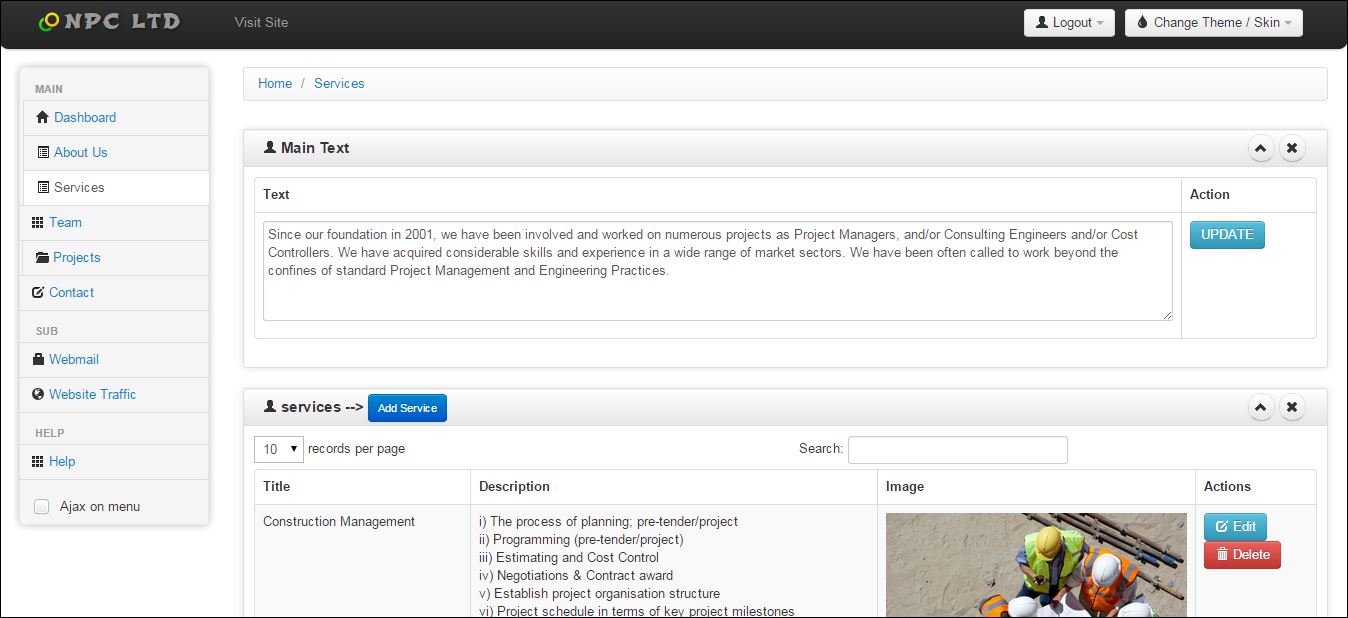
- Edit content in main text area
- Click on the update button(see screenshot below)
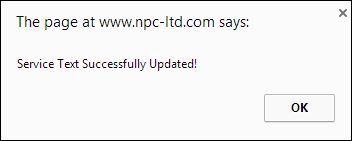
- See pop-out box of Service text successfully added(see screenshot below)
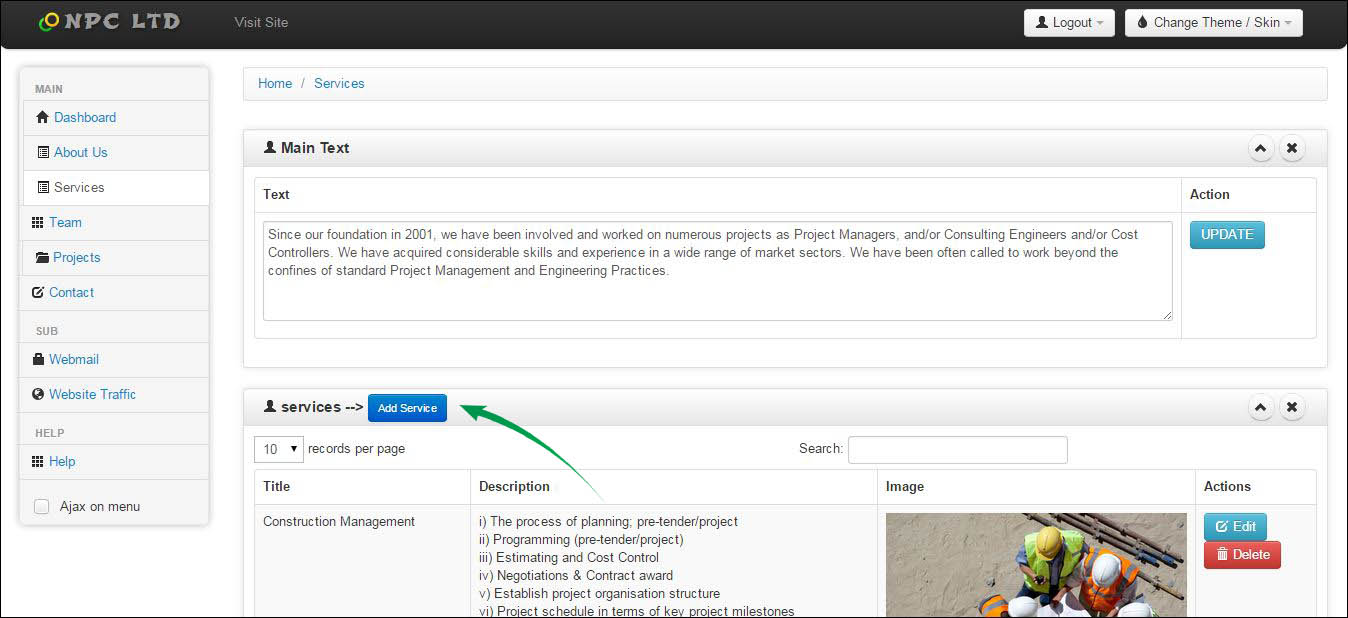
2.How to add a new service?
Steps to add a new service:
- click on "Add Service"
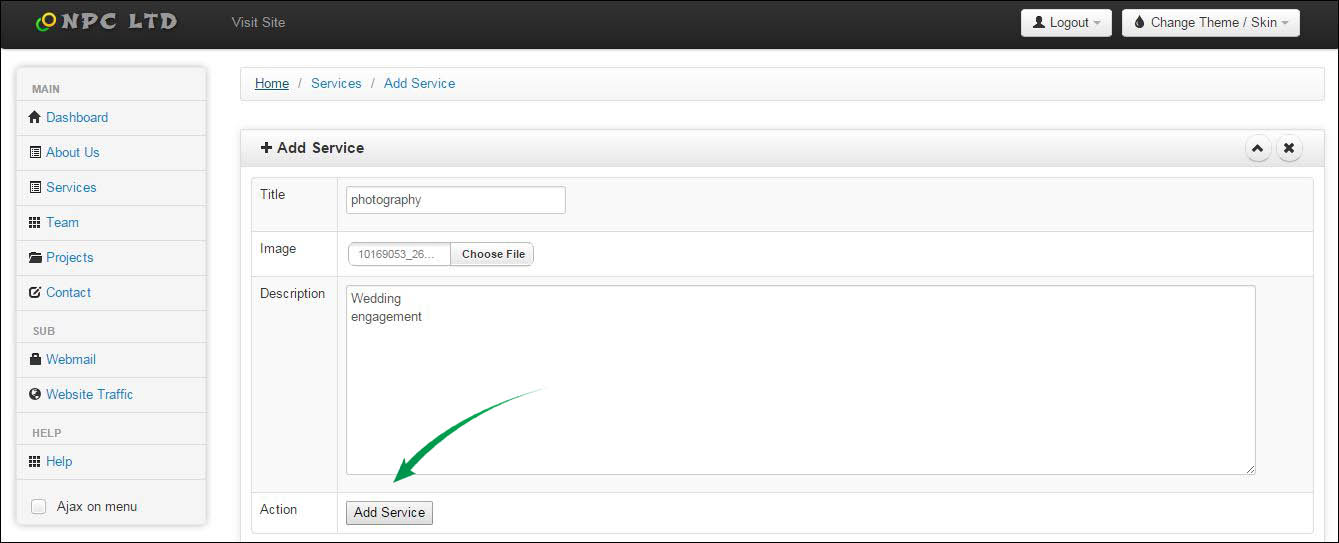
- New page - Fill in the selected area provided(Title,Image,Description)
- Click on the Add service when done (see screenshot)
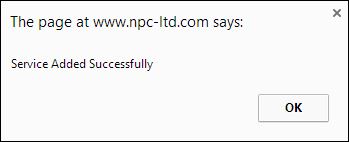
- See pop-out box of Service Added Successfully(see screenshot below)
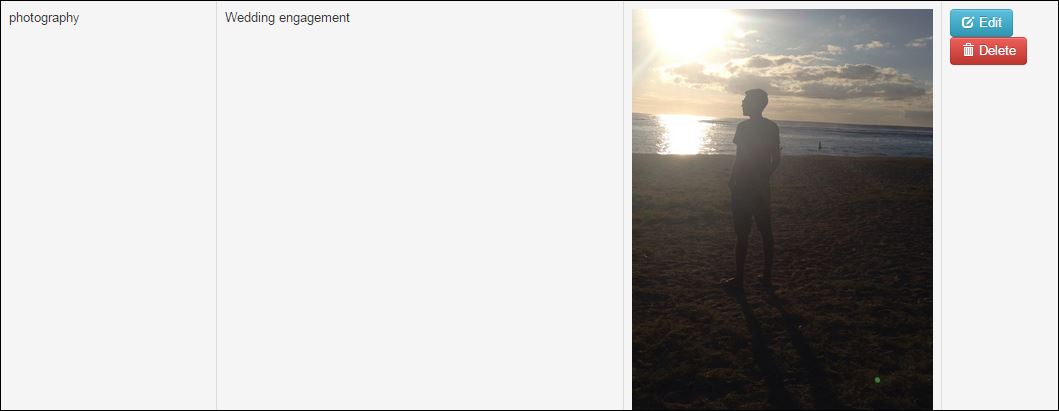
See Added Service(see screenshot below :)
3.How to Edit or Delete a service?
Steps to Edit or Delete a service:
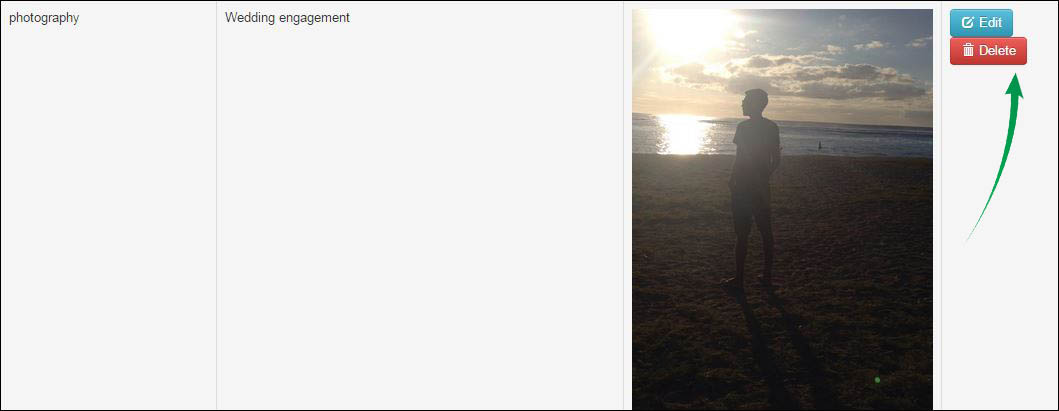
- click on edit to Edit the sections in the added service or existing one.
- Click on Update when finish editing.
- Click on delete to Delete the selected service. (see screenshot below)
How to edit Team?
Steps to edit team:
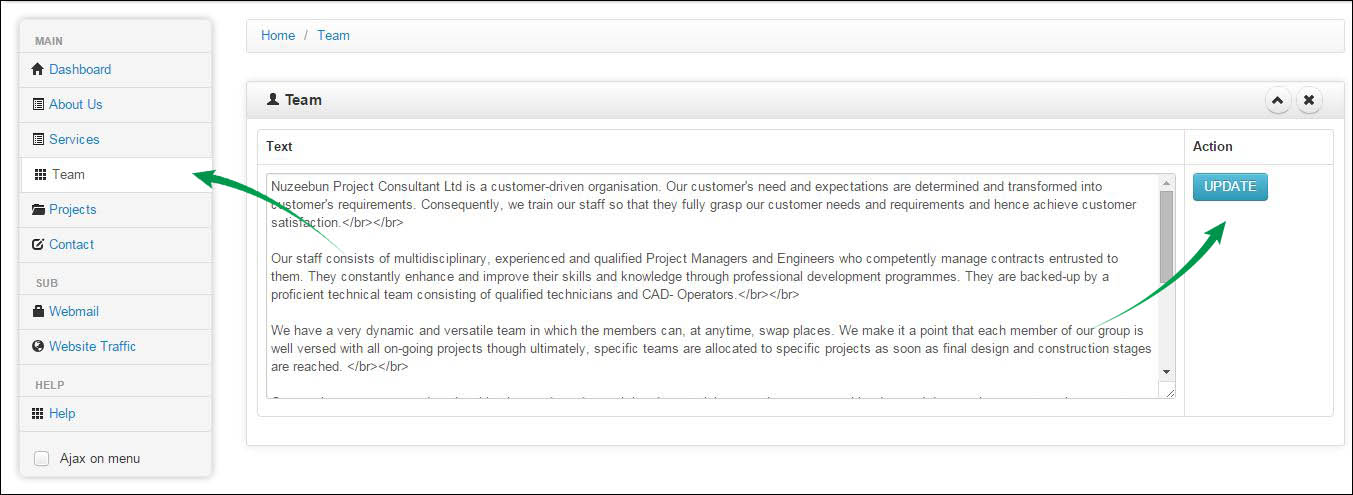
- Click on Team
- New page(See screenshot) : Edit selected text area
- Click on Update when done.
- See pop-out box of Team successfully updated
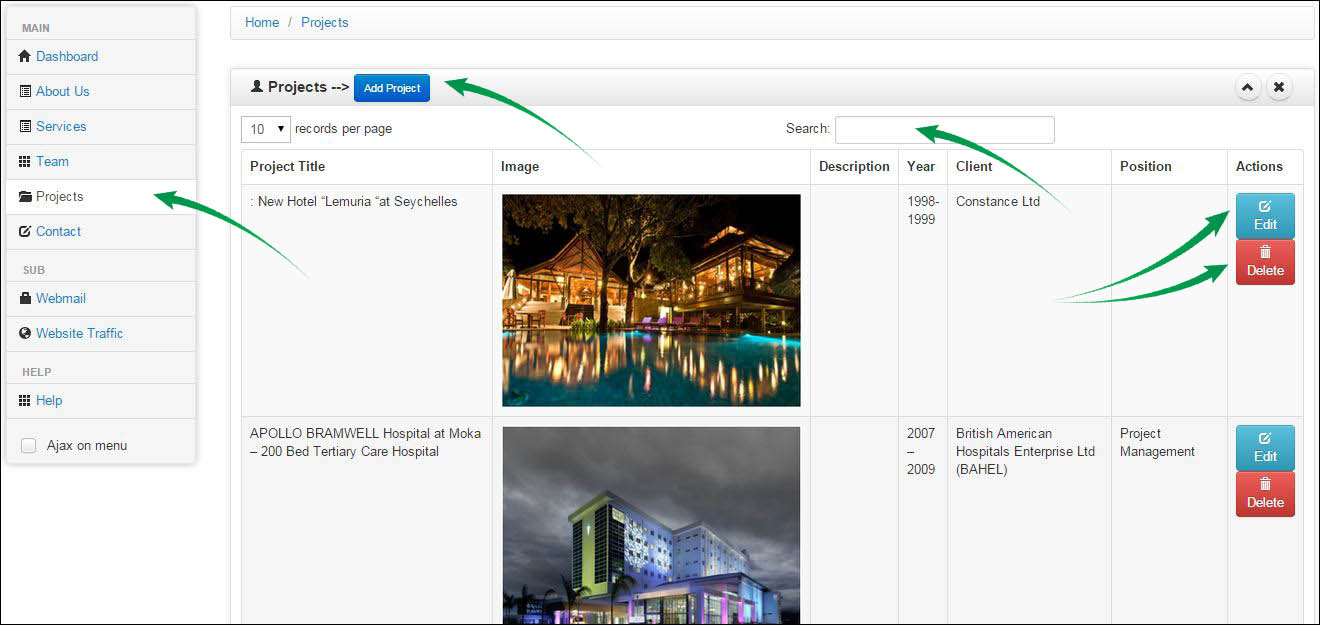
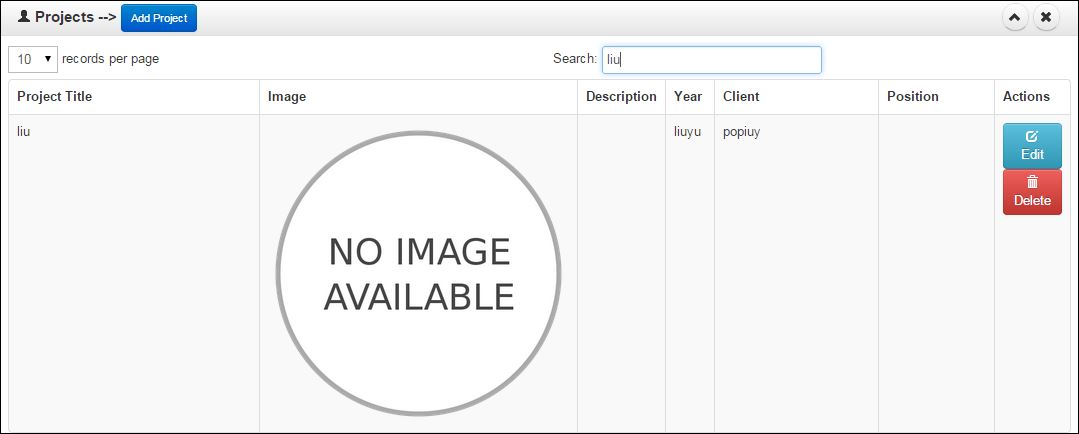
1.How search for a project?
Steps search for a project:
- Click on search engine
- Type project you are looking for
- See search result(see screenshot)
2.How to sort project?
Steps to sort project:
- Click on any sections " Project Title | Image | Description | ..."
- This will sort the sections by Ascending or Descending Order.

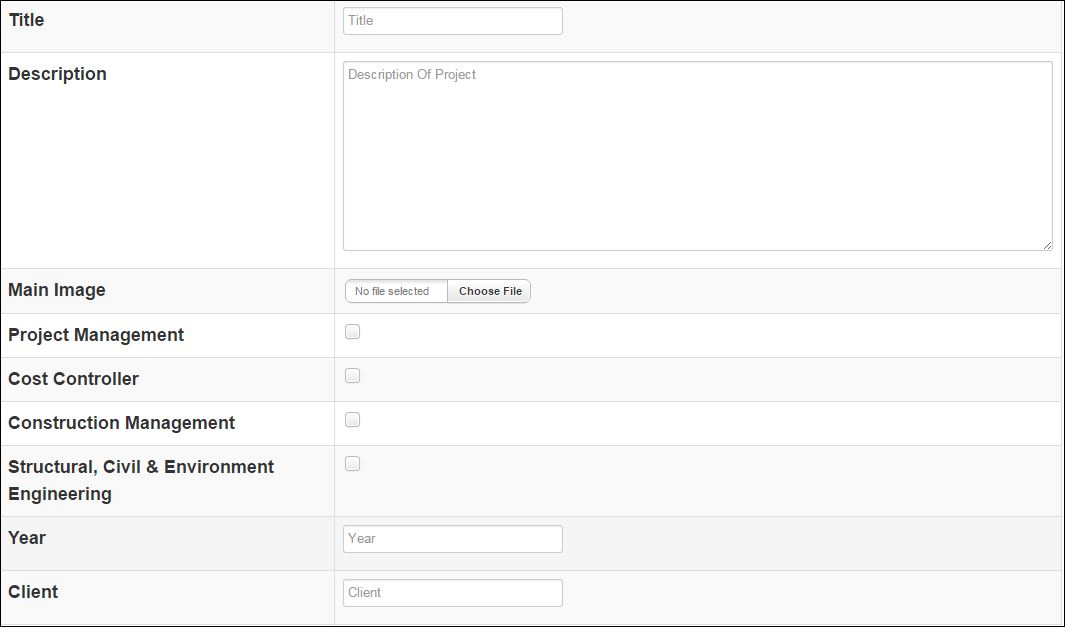
3.How to add project?
Steps add project:
- Click on Projects
- New page(See above screenshot) : Click on Add Project
- New page(See screenshot below) :Edit the provided details(title,description,main image,etc...).
- Click on "Add New Project" when done
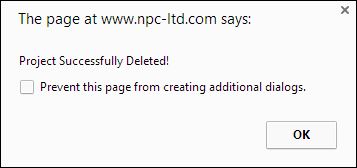
- See pop-out box of Project successfully Deleted
4.How to edit project?
Steps to edit and add image to project:
- Click on "Edit" (see screenshot)
- New page(See above screenshot) : Add image to project.
- Edit the provided area(Main image,Project name,Client name,etc...).
- Click on "Update" when done
- See pop-out box of Project successfully updated

Note : If no image has been uploaded a default "NO IMAGE" will be automatically uploaded
Please take note that the image should not exceed 1000px
5.How to delete project?
Steps delete a project:
- Click on "Delete"
- See pop-out box to confirm deletion of selected project (See screenshot below)
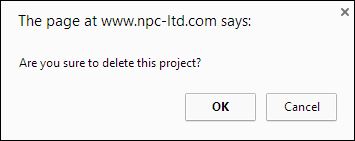
- See pop-out box to confirm deletion of selected project (See screenshot below)
How to Access Mail?
Steps to Access Mail:
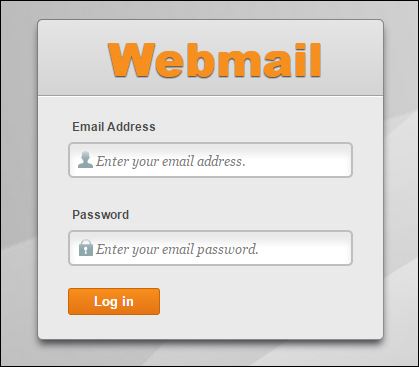
- Click on "Webmail" or go on http://www.npc-ltd.com/webmail
- New page(see screenshot) : Will open in new tab.
- Insert Email Address
- Enter Password
- Click on Log In to access mail
1.How to view incoming traffic flow?
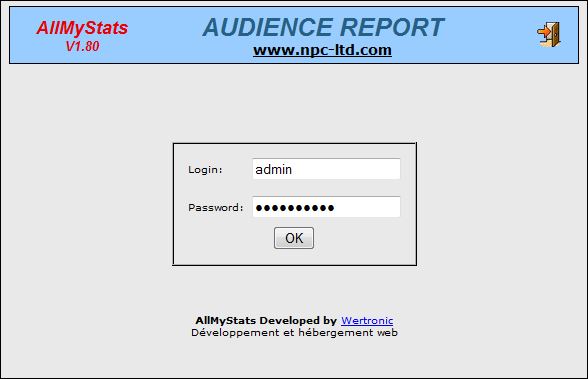
Step to follow to login:
- Go on http://www.npc-ltd.com/allmystats/
- Enter Username(login)
- Enter Password
- Click on OK
You will be directed to new page(see screenshot below):
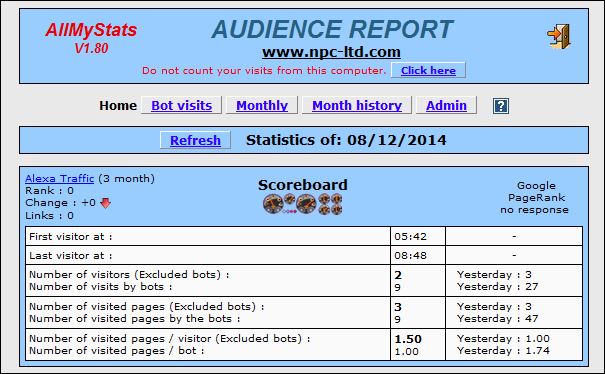
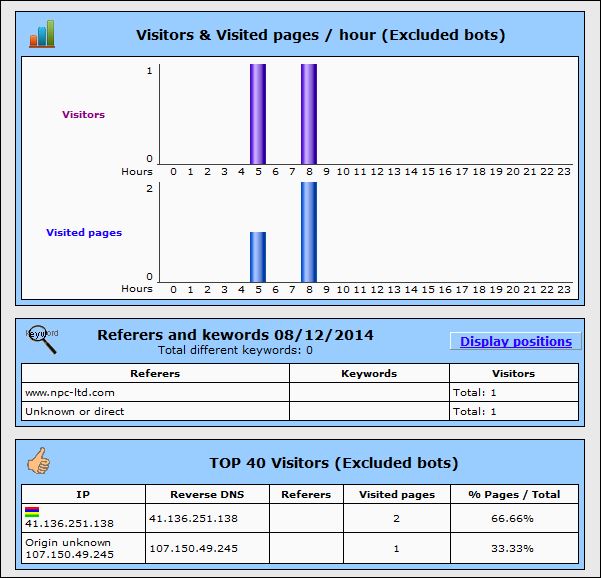
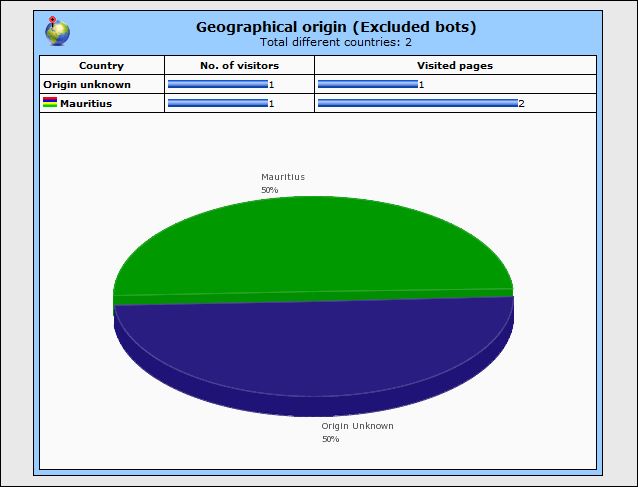
AllMyStats AUDIENCE REPORT.
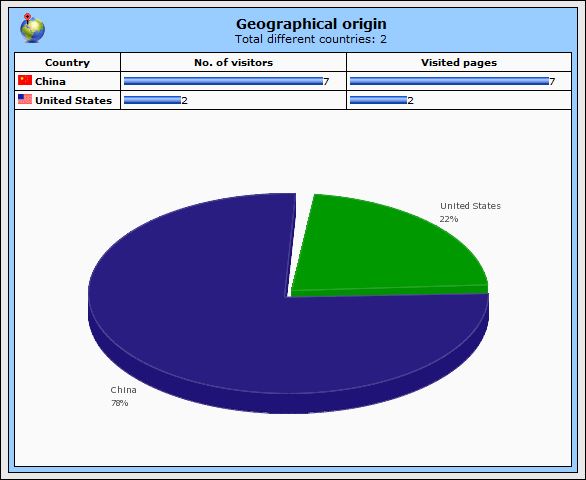
You can have a view of the incoming traffic flow in the diagrams below.
2.How to view Bot visits?
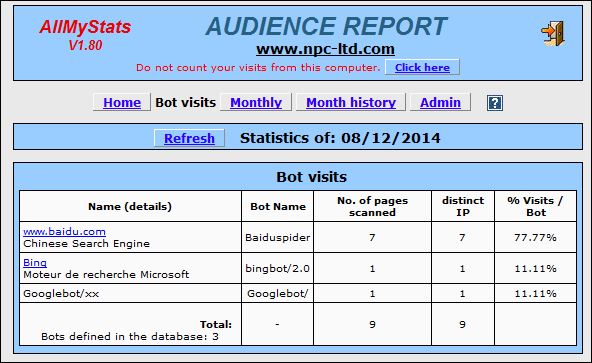
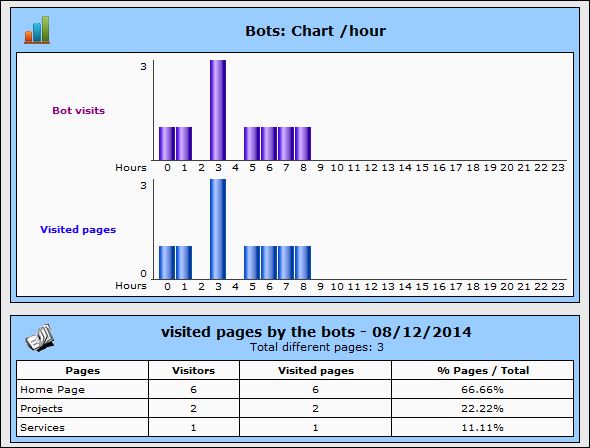
- Click on Bot visits
- See new page(see screenshot)
3.How to view monthly visits?
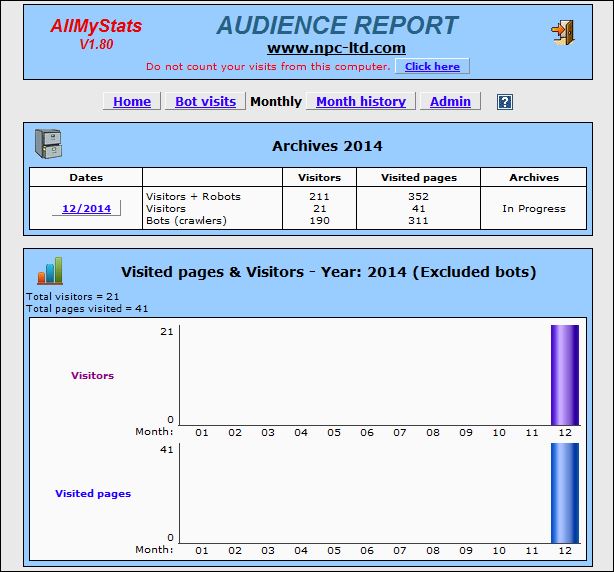
- Click on monthly history
- See new page(see screenshot)
- Click On monthly history for more stats


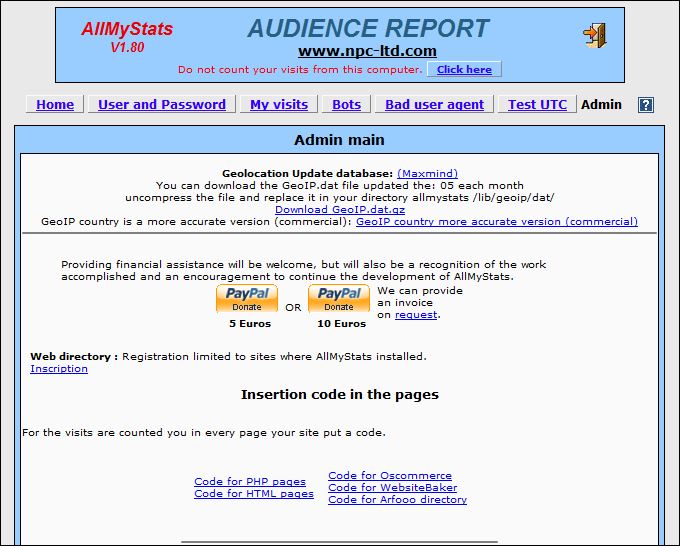
4.How to change admin username & password?
Steps to change admin username & password:
- Click on Admin
- New Page - See Screenshot
- Click on User and Password
- New Page - See Screenshot
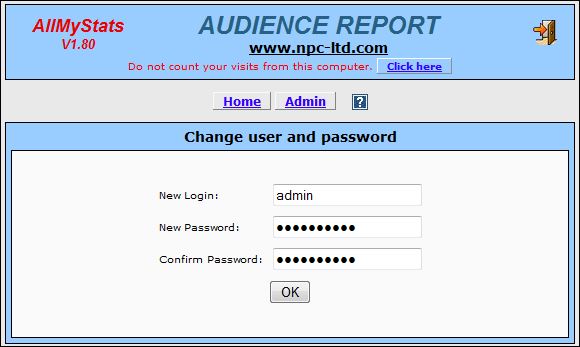
- Input New login
- Input New Password
- Confirm Password
- Click on ok
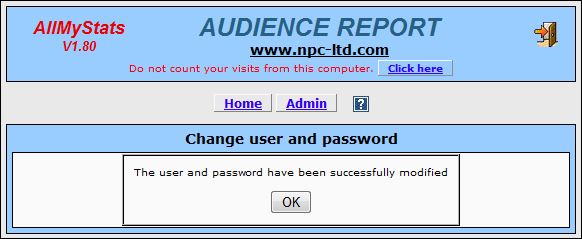
- See message successfully modified
5.How to logout to allmystats?
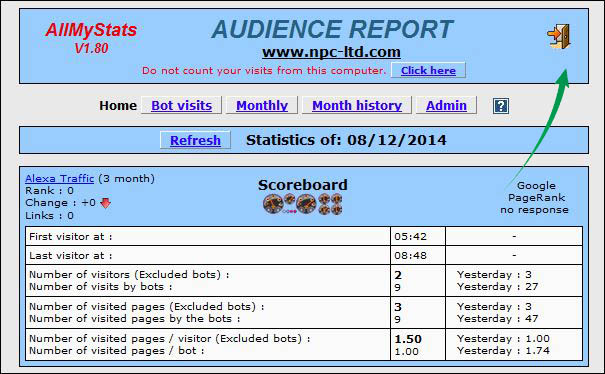
Steps to logout allmystats:
- Click On the icon found on the top(see above screenshot)
- Redirected to allmystats login page
How to logout to backend?
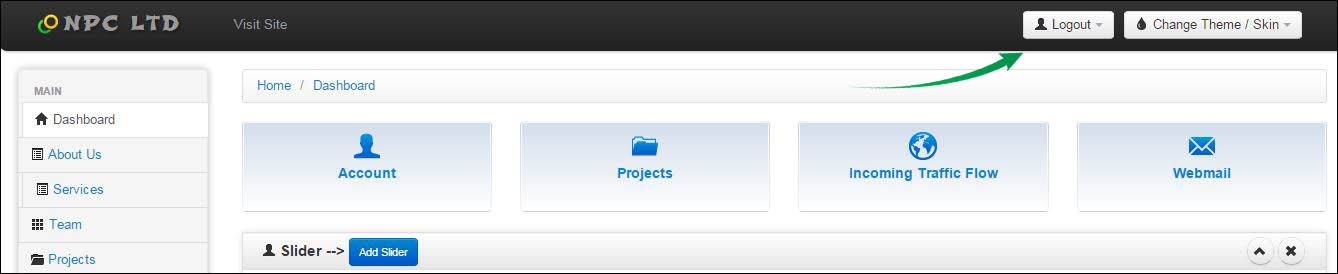
Steps to logout to backend:
- Click On logout
- Redirected to admin panel